TradingView alerts
Send TradingView alerts to Telegram
Get each TradingView alert as a Telegram message, in a private chat, a group or a channel. You paste one URL into TradingView and decide once how the message should read. There is no code to write and nothing to host.
What you need
- A TradingView plan with webhook alerts. Webhooks are a paid TradingView feature, and TradingView only allows them once two-factor authentication is switched on for your account. Its pricing page lists which plans include them.
- A Telegram account. You will create a bot of your own in a moment. It is free and takes a minute.
Step 1: get your webhook URL
This is the address TradingView will send your alerts to. You stay on this page, so the steps stay in front of you.
Free. No signup. You stay on this page.
The inspector opens in a new tab. A free URL works for 7 days.
Step 2: create your Telegram bot
A bot is how Telegram lets something other than a person send messages. Yours will only ever message you.
- In Telegram, open a chat with @BotFather and send
/newbot. Give the bot a name and a username when asked. - BotFather replies with a token, a long code with a colon in it. Copy it and keep it private: anyone who has it can send messages as your bot.
- Open your new bot's chat and press Start, or send it any message. A bot cannot write to you until you have written to it.
- Find your chat ID. Open the address below in your browser with your token in place of
<TOKEN>, and look for"chat":{"id":followed by a number. That number is your chat ID.
https://api.telegram.org/bot<TOKEN>/getUpdatesIf the page shows an empty result, send your bot another message and reload it.
Step 3: point a TradingView alert at it
- On your chart, create an alert (the alarm clock button) or edit one you already have.
- Open Notifications, tick Webhook URL and paste your webhook URL.
- In the Message box, write what the alert should say. Plain words are fine, for example BTCUSDT crossed above 67,000. It will arrive in Telegram exactly as you write it.
- Save the alert.
Fire it once now so you have a real alert to work with. The quick way is a price alert whose condition is already true, such as the price being greater than a value well below today's, set to trigger only once.
Step 4: send it on to Telegram
- Open the inspector from the box in step 1. Your alert is in the list on the left. Select it.
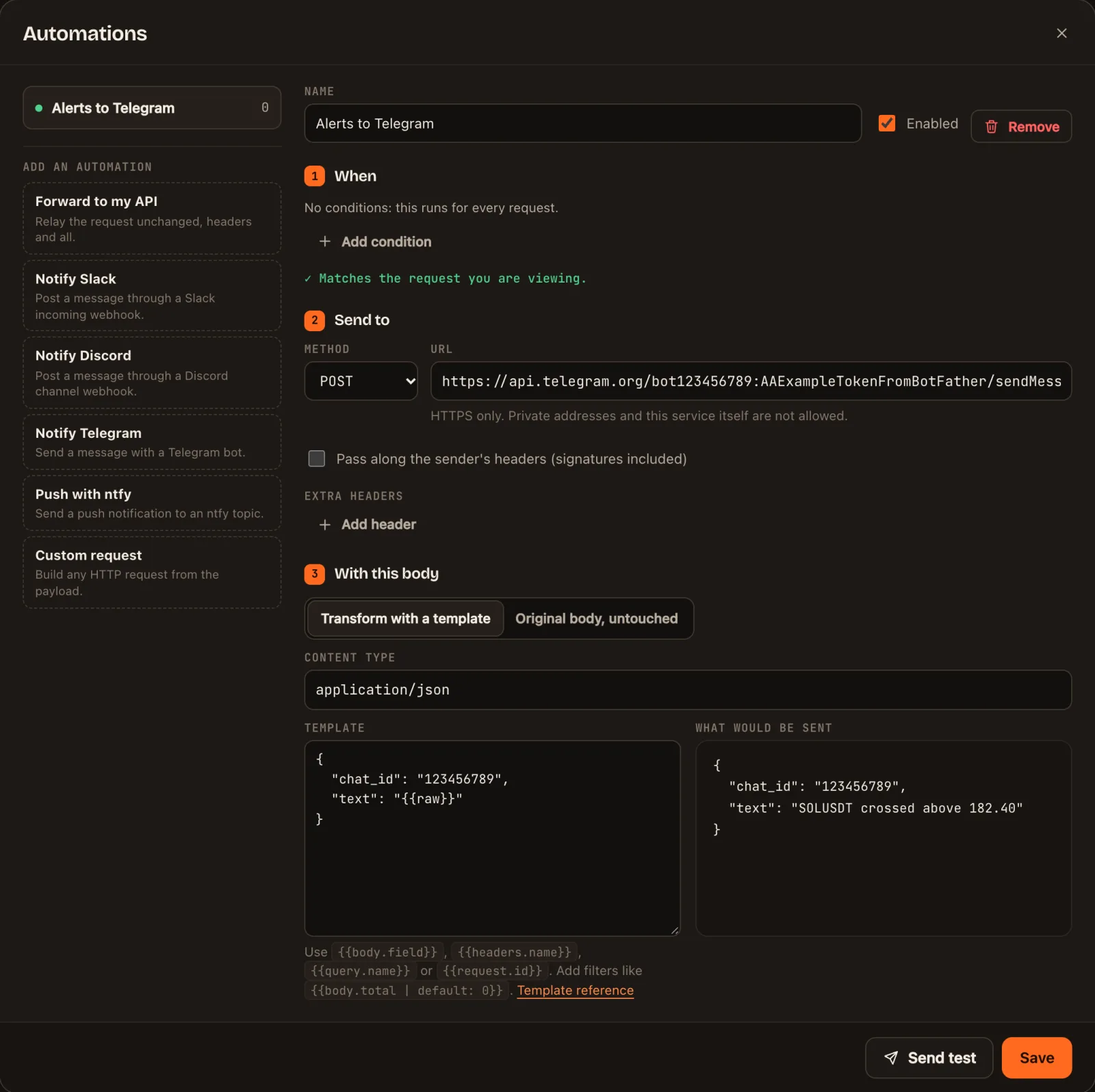
- Click Automations and, under Add an automation, choose Notify Telegram.
- Under URL, paste the address below with your bot's token in place of
<TOKEN>. - Replace what is in Template with the template below, and put your chat ID in place of
YOUR_CHAT_ID. - Click Send test. The alert you fired arrives in Telegram. Then click Save.
https://api.telegram.org/bot<TOKEN>/sendMessage{
"chat_id": "YOUR_CHAT_ID",
"text": "{{raw}}"
}
{{raw}} means "the alert's message, exactly as TradingView sent it". From now on every alert that reaches this URL is passed to your chat. Use the same URL in as many TradingView alerts as you like.
Send only some alerts
Under 1 When, add a condition and the automation runs only for alerts that match. With plain-text alerts, match on words in the message:
| Field | Operator | Value |
|---|---|---|
raw | contains | BTC |
That sends only alerts that mention BTC. A second automation with a different condition can go to a different chat, so signals for different markets can each have their own group.
A tidier message, with a link to the chart
If you write the TradingView message as a short list of labelled values, you can lay the Telegram message out however you like and filter on any value. Put this in TradingView's Message box:
{
  "ticker": "{{ticker}}",
  "exchange": "{{exchange}}",
  "price": "{{close}}",
  "interval": "{{interval}}",
  "time": "{{timenow}}",
  "signal": "buy"
}
TradingView fills in the parts in double braces when the alert fires. Change buy to whatever this alert means. Then use this as the template in the automation:
{
  "chat_id": "YOUR_CHAT_ID",
  "text": "{{body.signal | upper}} {{body.ticker}} at {{body.price}}\n{{body.exchange}} · timeframe {{body.interval}}\nhttps://www.tradingview.com/chart/?symbol={{body.exchange}}:{{body.ticker}}"
}
Telegram shows BUY BTCUSDT at 67250.5, the exchange and timeframe, and a link that opens the chart. To send only buy signals, add this condition:
| Field | Operator | Value |
|---|---|---|
body.signal | equals | buy |
More ready-made messages, including ones for strategy orders and indicator values, are in alert message templates.
Groups and channels
| Send to | Do this | Chat ID |
|---|---|---|
| A group | Add your bot to the group, then send a message in the group that mentions the bot | A negative number. Find it with the same getUpdates address |
| A public channel | Add your bot to the channel as an administrator that can post | The channel's name with an @, such as @mysignals |
| A private channel | Add your bot as an administrator, then post something in the channel | A number starting with -100, from getUpdates |
If the message does not arrive
Select the alert in the inspector and open its Deliveries tab. It shows what was sent and what Telegram answered.
| Telegram answered | Usually means |
|---|---|
chat not found | The chat ID is wrong, or you have not sent your bot a message yet |
401 Unauthorized | The token in the URL is wrong or was copied incompletely |
bot was blocked by the user | You blocked or deleted the bot's chat. Open it and press Start again |
429 | Too many messages in a short time. Telegram is slowing the bot down |
| Nothing under Deliveries | The automation's conditions did not match this alert, or the alert never reached your URL. See testing a TradingView webhook |
Things worth knowing
- A missed message stays missed. If the destination cannot be reached, that delivery is recorded as failed and is not tried again. The alert itself is still in your inspector. Treat chat alerts as a heads-up, and think carefully before letting one place a trade.
- TradingView gets its answer at once. TradingView gives up on a webhook that takes more than three seconds to answer. Your URL answers immediately, whatever the chat app is doing.
- Keep the inspector link to yourself. Anyone with it can read your alerts and see the addresses they are sent to. The webhook URL you paste into TradingView is different: it can only receive.
- Stick to plain text at first. Telegram can do bold and italics, but one stray symbol in a ticker or a comment makes it reject the whole message. Plain text always gets through.
- The free limits are generous for alerts. A free URL can send 1,000 messages a day and keeps your last 250 alerts to look back on.
Questions
Yes, if you put your bot's address in the alert and write every alert's message in the exact format Telegram expects, chat ID included. Going through webhook.stream is for when you want more: the same alert in several chats or apps, filters, plain-worded alerts, a record of every alert, and one place to change the wording instead of editing every alert.
No. Write the alert message in plain words and it arrives in Telegram exactly as written. JSON is only worth it when you want to filter on a value, such as sending only buy signals, or lay the message out differently.
Yes. Add your bot to the group, or make it an administrator of the channel, and use that chat's ID. A public channel can be addressed by its @name.
Setting it up and running it for 7 days is free. To keep the same URL working after that, a one-time pass is $3 for 30 days or $19 for 1 year. There is no subscription.
The message is sent the moment the alert reaches your URL. Nothing is queued or collected into batches. Each delivery is logged with how long Telegram took to accept it.
webhook.stream is an independent service. It is not affiliated with or endorsed by TradingView, Telegram or Discord. Nothing on this page is financial advice.