TradingView alerts
Send TradingView alerts to Discord
Post each TradingView alert to a Discord channel, as a plain message or as a green or red card with a link to the chart. You do not need to build a bot. Discord gives you an address for the channel, and you connect the two here.
What you need
- A TradingView plan with webhook alerts. Webhooks are a paid TradingView feature, and TradingView only allows them once two-factor authentication is switched on for your account. Its pricing page lists which plans include them.
- A Discord server where you can manage webhooks. Your own server, or one where an admin has given you that permission.
Step 1: get your webhook URL
This is the address TradingView will send your alerts to. You stay on this page, so the steps stay in front of you.
Free. No signup. You stay on this page.
The inspector opens in a new tab. A free URL works for 7 days.
Step 2: get the channel's address from Discord
- In Discord, open the settings of the channel the alerts should appear in (the cog next to its name).
- Go to Integrations, then Webhooks, and click New Webhook.
- Give it a name, such as TradingView. That is the name the alerts will be posted under.
- Click Copy Webhook URL. It starts with
https://discord.com/api/webhooks/. Keep it private: anyone who has it can post to the channel.
Step 3: point a TradingView alert at it
- On your chart, create an alert (the alarm clock button) or edit one you already have.
- Open Notifications, tick Webhook URL and paste your webhook URL.
- In the Message box, write what the alert should say. Plain words are fine, for example ETHUSDT crossed below 3,400. It will be posted to Discord exactly as you write it.
- Save the alert.
Fire it once now so you have a real alert to work with. The quick way is a price alert whose condition is already true, such as the price being greater than a value well below today's, set to trigger only once.
Step 4: send it on to Discord
- Open the inspector from the box in step 1. Your alert is in the list on the left. Select it.
- Click Automations and, under Add an automation, choose Notify Discord.
- Under URL, paste the address you copied from Discord.
- Replace what is in Template with the template below.
- Click Send test. The alert you fired appears in the channel. Then click Save.
{
  "content": "{{raw | truncate: 1900}}"
}
{{raw}} means "the alert's message, exactly as TradingView sent it". The truncate part keeps a very long message inside Discord's 2,000-character limit. Use the same URL in as many TradingView alerts as you like.
Green cards for buys, red cards for sells
Discord can show a message as a card with a coloured edge. To use it, the alert has to say what kind it is, so write the TradingView message as a short list of labelled values:
{
  "ticker": "{{ticker}}",
  "exchange": "{{exchange}}",
  "price": "{{close}}",
  "interval": "{{interval}}",
  "time": "{{timenow}}",
  "signal": "buy"
}
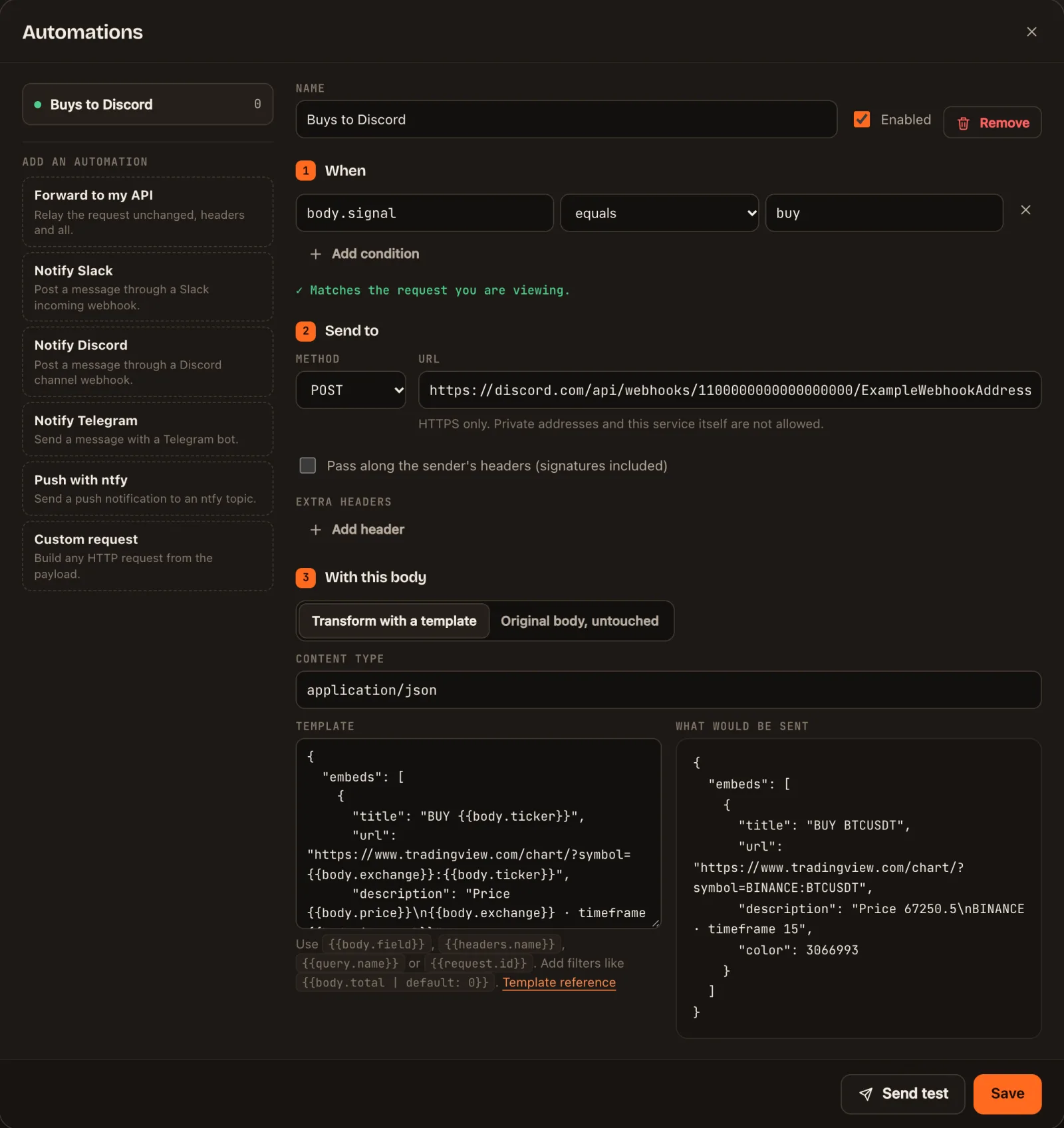
Use buy in your buy alerts and sell in your sell alerts. Then make two automations, both with your Discord address. The first runs for buys:
| Field | Operator | Value |
|---|---|---|
body.signal | equals | buy |
{
  "embeds": [
    {
      "title": "BUY {{body.ticker}}",
      "url": "https://www.tradingview.com/chart/?symbol={{body.exchange}}:{{body.ticker}}",
      "description": "Price {{body.price}}\n{{body.exchange}} · timeframe {{body.interval}}",
      "color": 3066993
    }
  ]
}
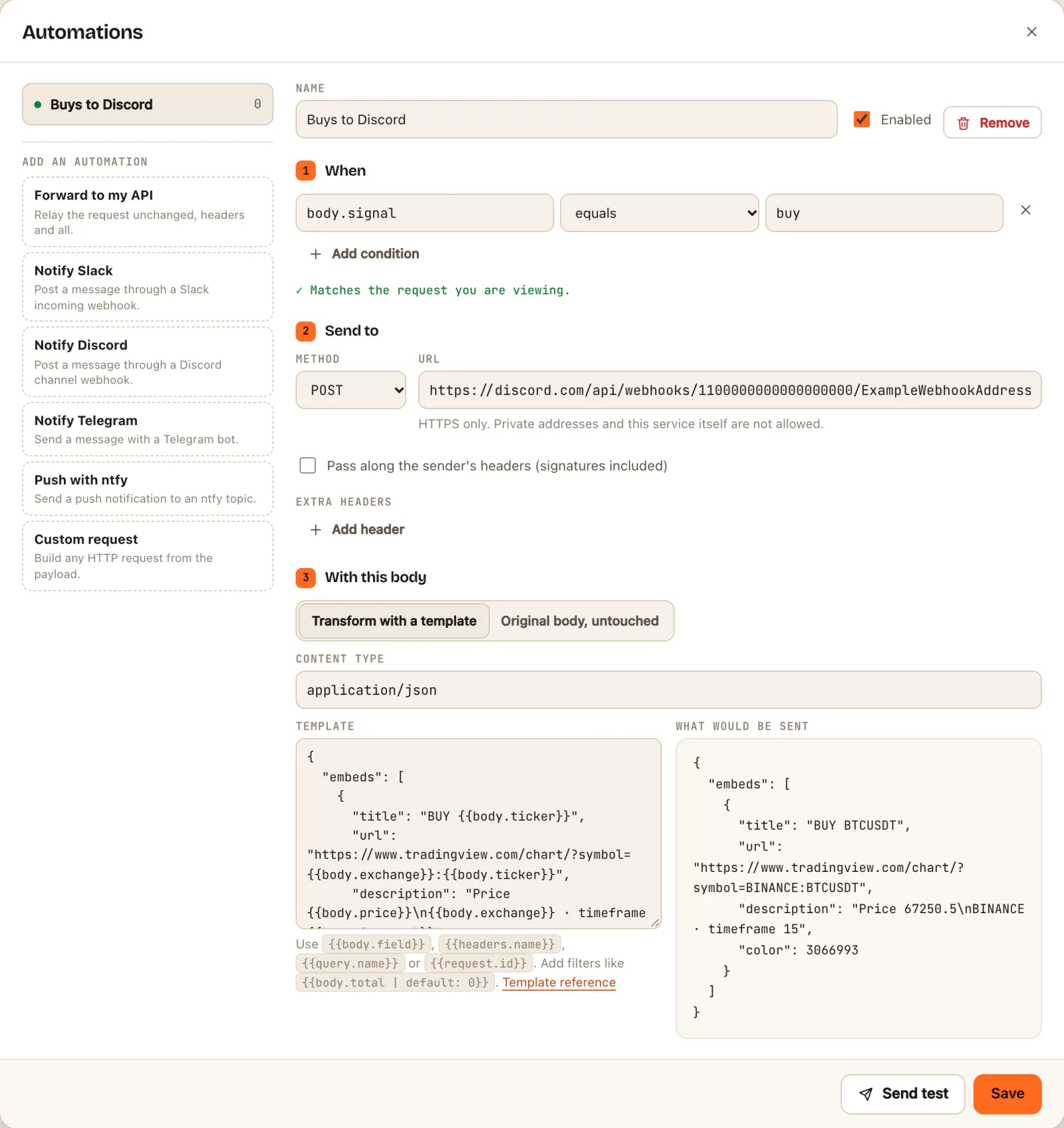
The second runs for sells:
| Field | Operator | Value |
|---|---|---|
body.signal | equals | sell |
{
  "embeds": [
    {
      "title": "SELL {{body.ticker}}",
      "url": "https://www.tradingview.com/chart/?symbol={{body.exchange}}:{{body.ticker}}",
      "description": "Price {{body.price}}\n{{body.exchange}} · timeframe {{body.interval}}",
      "color": 15158332
    }
  ]
}
The card's title links to the chart. The two numbers are the colours: 3066993 is green and 15158332 is red. A free URL allows 3 automations, so this leaves one spare.
Pinging people
To notify the channel, add a content line with a mention above embeds, such as "content": "@here",. To ping a single role, use <@&ROLE_ID> with the role's ID, which you can copy from the server's role settings when Developer Mode is on.
If the message does not appear
Select the alert in the inspector and open its Deliveries tab. It shows what was sent and what Discord answered. Discord answers 204 when a message is posted.
| Discord answered | Usually means |
|---|---|
400 | The template is not in the shape Discord expects. Its reply names the part that is wrong |
401 or 404 | The webhook was deleted in Discord, or its address was copied incompletely. Copy it again |
429 | Too many messages in a short time. Discord is slowing the webhook down |
| Nothing under Deliveries | The automation's conditions did not match this alert, or the alert never reached your URL. See testing a TradingView webhook |
Things worth knowing
- A missed message stays missed. If the destination cannot be reached, that delivery is recorded as failed and is not tried again. The alert itself is still in your inspector. Treat chat alerts as a heads-up, and think carefully before letting one place a trade.
- TradingView gets its answer at once. TradingView gives up on a webhook that takes more than three seconds to answer. Your URL answers immediately, whatever the chat app is doing.
- Keep the inspector link to yourself. Anyone with it can read your alerts and see the addresses they are sent to. The webhook URL you paste into TradingView is different: it can only receive.
- The free limits are generous for alerts. A free URL can send 1,000 messages a day and keeps your last 250 alerts to look back on.
Questions
Yes, if you write each alert's message in the exact format Discord expects and only want it in one channel. Going through webhook.stream is for when you want more: the same alert in several places, filters, different colours for buys and sells, a record of every alert, and one place to change the wording instead of editing every alert.
No. A channel webhook is enough. You create it in the channel's settings in a few clicks, and it can only post to that channel.
Yes. Add a mention such as @here to the message, or a role mention for a single role. The section on pinging people above shows where it goes.
Yes. Each automation has its own channel address and its own conditions, so buys can go to one channel and sells to another.
Setting it up and running it for 7 days is free. To keep the same URL working after that, a one-time pass is $3 for 30 days or $19 for 1 year. There is no subscription.
webhook.stream is an independent service. It is not affiliated with or endorsed by TradingView, Telegram or Discord. Nothing on this page is financial advice.